How to install LiveChat for student customer service on the Moodle online course website?
Using Additional HTML in Moodle's appearance settings, course teams can add a chat window to the site to receive questions about registration and learning paths.
Inquiries on online course websites often occur on specific pages. Some people ask about the language of instruction before purchasing, while others cannot find a particular lesson after logging in. When integrating in-site chat, first list two entry points to check: the public course introduction page and the course homepage after logging in. Record the identities used for testing to help determine what students and visitors are actually seeing.
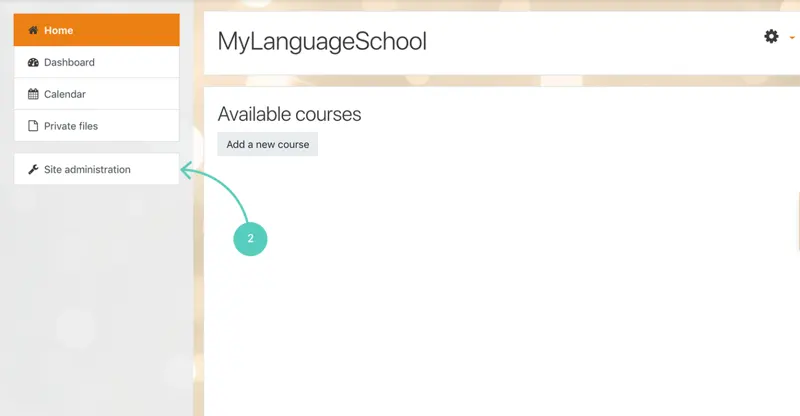
Log in to Moodle with an account that has site administration privileges, go to Site administration, and open Additional HTML under Appearance. In another tab, log in to the LiveChat workspace you're preparing to host participants, and copy your installation code. Place the entire code in the area corresponding to "Before BODY is closed," and then select "Save changes."
Returning to the course site, open the pre-selected pages and observe whether the chat window appears. Then, from the visitor's perspective, ask a real-world question, such as whether the course provides subtitles. The customer service side confirms receipt of the message and replies. If the backend has already saved the code but there is no entry point on the frontend, first recheck the code installation location and the page used for verification; do not paste the customer service code into the body of each course individually.