LiveChat Auto-Away Settings: How to Avoid Being Unattended by Customer Service Across Time Zones
The desktop departure timer will change the agent's reception status. If the session is maintained on mobile or web, the behavior may differ from expectations.
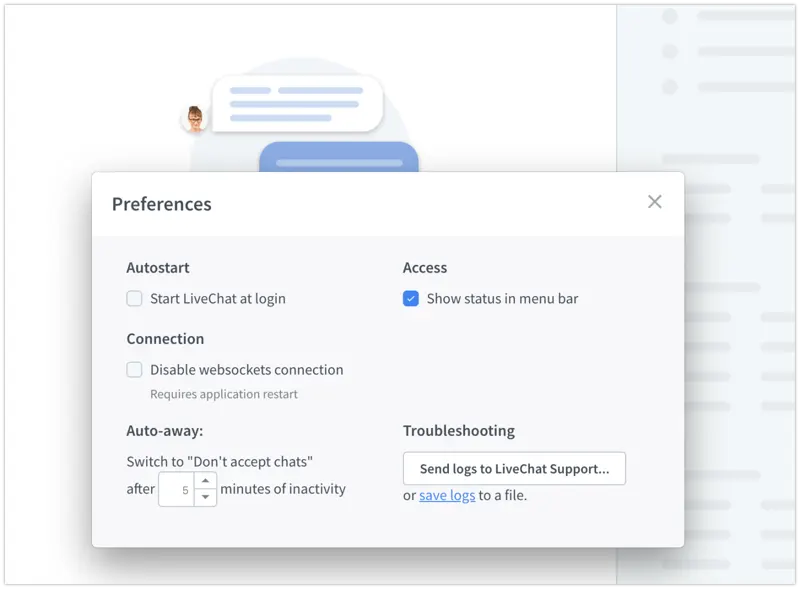
During shift changes, visitors may see customer service available but wait a long time for a response, partly because the agent's computer is still on. LiveChat's desktop application can switch from accepting chat to not accepting chat after a set idle time. The duration of this timeout should be determined based on actual agent habits, such as whether agents frequently need to temporarily switch to other systems to check logistics.
On the Windows or Mac client, open the LiveChat menu, go to Preferences, find Auto-away, and enter the waiting time. Have one agent try it out first. After the set time has passed, check if the status has changed, then click on the desktop application to confirm that the status has been restored to accepting chats, preventing the agent from not receiving inquiries upon returning to work.
During testing, also be aware of other devices. If there are still ongoing login sessions on the mobile or web applications, the agent may remain available, even if automatic logout is enabled on the desktop. To ensure a smooth handover following desktop rules, log out of both the mobile and web applications first. Test both scenarios separately: logging in only on the computer and logging in simultaneously on the mobile device, and document the differences in the handover instructions.